Make Sense of your information
No matter what type of documents your business needs to process, Kodak Alaris has a scanner that will reliably deliver the best image possible, and deliver accurate data into your business systems.
Scan and send information with one touch. Developed in the USA
Our Smart Touch technology is built into most of our document scanners. Its one-touch simplicity eliminates complicated multi-step scanning processes, and you can easily configure up to 20 different functions to fit your specific scanning needs.
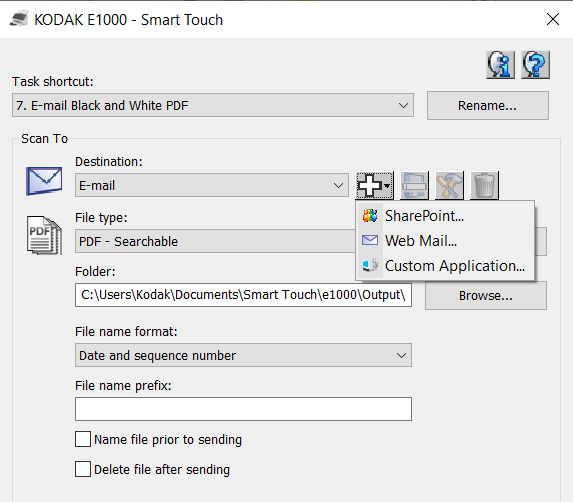
Save as TIFF, JPEG, BMP, PDF, sPDF, PNG, Word, and other common formats
Send to applications and storage locations, including Microsoft Office, Adobe Acrobat, Microsoft SharePoint, Evernote, Box, and other third-party applications
Automatically attach scanned documents to an email to reduce the post-scanning steps required to share information
Create searchable PDF files
The built-in optical character recognition (OCR) engine automatically creates searchable documents, while enabling you to copy and even edit text-based content within each scanned document.
No matter what type of documents your business needs to process, Kodak Alaris has a scanner that will reliably deliver the best image possible, and deliver accurate data into your business systems.
Learn how Smart Touch technology helps to simplify scanning, speed document retrieval, improve productivity, and save your organization money.

KMWorld has recognized the Kodak Alaris IN2 Ecosystem on its list of trend-setting products of 2019.
Smart Touch software allows you to easily create searchable PDF's (or other types of images) and send the document to a file location or common cloud services with the touch of a button.
Please read the release notes before downloading. By downloading from Kodak Alaris, you agree to the terms & conditions outlined in the license agreement.
Request Software for:
SCANMATE i1150 ScannerSCANMATE i1180 Scanneri1190 Scanneri1190E Scanner
Smart Touch software allows you to easily create searchable PDF's (or other types of images) and send the document to a file location or common cloud services with the touch of a button.
Please read the release notes before downloading. By downloading from Kodak Alaris, you agree to the terms & conditions outlined in the license agreement.
Request Software for:
Smart Touch software allows you to easily create searchable PDF's (or other types of images) and send the document to a file location or common cloud services with the touch of a button.
Please read the release notes before downloading. By downloading from Kodak Alaris, you agree to the terms & conditions outlined in the license agreement.
Request Software for:
Smart Touch software allows you to easily create searchable PDF's (or other types of images) and send the document to a file location or common cloud services with the touch of a button.
Please read the release notes before downloading. By downloading from Kodak Alaris, you agree to the terms & conditions outlined in the license agreement.
Request Software for:
S2085f ScannerS3120Max ScannerS3140Max ScannerS3060 ScannerS3060f ScannerS3100 ScannerS3100f Scanner
Smart Touch software allows you to easily create searchable PDF's (or other types of images) and send the document to a file location or common cloud services with the touch of a button.
Please read the release notes before downloading. By downloading from Kodak Alaris, you agree to the terms & conditions outlined in the license agreement.
Request Software for:
i3200 Scanneri3250 Scanneri3300 Scanneri3400 Scanneri3450 Scanneri3500 Scanner
This software will let you create searchable PDF's (or other types of images) with the touch of a button.
Please read the release notes before downloading. By downloading from Kodak Alaris, you agree to the terms & conditions outlined in the license agreement.
Request Software for:
Have a question? Fill out the information and someone will contact you soon.
It is very important to install Smart Touch as an Administrator. Windows need certain permissions for file access that is not provided when installing as a standard or domain user.
Windows XP Pro: Log on to the system as an administrator. Double click the Smart Touch installer.
Windows Vista, 7, 8: Log on to the system as an administrator. Right Click the Smart Touch installer and select 'Run As Administrator. Accept the default settings.
Visit the
smart touch support page
, and click on the Request Software button for your scanner model. After completing the form, you will be sent an email with a link to the software.
Yes. Click on the CONTACT US link on the top of the page for information on how to contact your Kodak Alaris Technical Support Team. When you call, please have available your scanner serial number and let our team know that you have a question about Smart Touch. With an active warranty or scanner maintenance agreement, Kodak Alaris will provide Smart Touch support to help you get the most out of your scanner from Kodak Alaris. Don't have an active scanner maintenance agreement? No problem, our Technical Support Team will put you in touch with our local Sales team who can provide a number of options to you.
Right click on the scanner symbol (usually located in the system tray on the bottom right side of the monitor.) You will see a selection similar to the following:
Select Configure… to open the adjustment page. A variety of settings are available for adjustment. Please see User's Guide for details on each setting.
Click the Smart Touch tray icon, Click About. The Smart Touch Scanner Model and Version will appear.
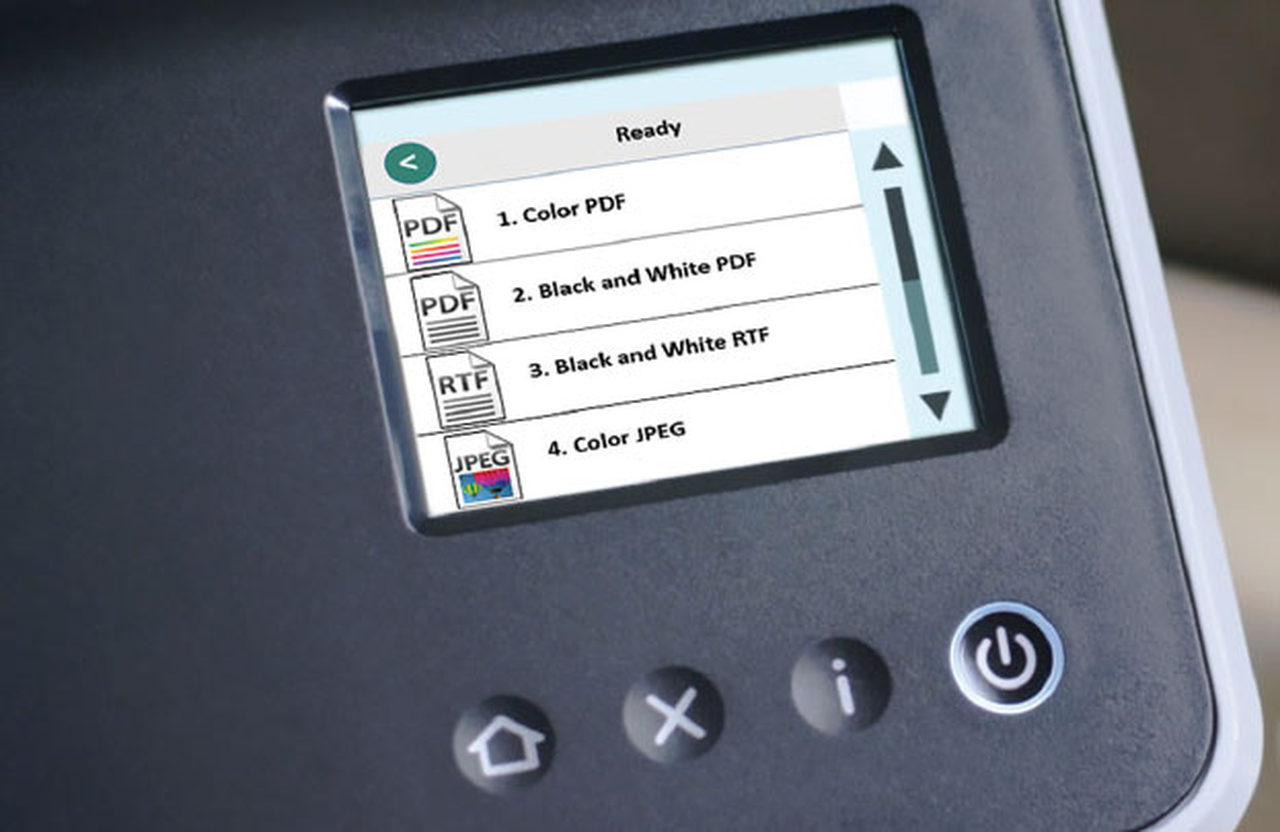
Press the button on the scanner. The number that appears on the scanner will change. Each number has a configuration.
Contact Kodak Alaris for support.
Run the scanner with the Scan Validation Tool: Start > All Programs > Kodak > Document Imaging > Scan Validation Tool
Note: For some models (i920, i940) the Scan Validation Tool does not have a start menu shortcut. Browse to C:\Program Files\Kodak\Document Imaging. Run ScanValidation.exe.
Insert a page into the scanner. Click the Scan All button. If the driver is working and the scanner connected, the scan will work. If scanning does not work with the Scan Validation Tool, or there is an error, the problem is not the Smart Touch Application. See the scanner User Guide for troubleshooting steps.
Close Smart Touch: Click the Smart Touch icon > Exit
Change File and Folder Options to 'Show hidden files and folders'
Browse to the user folder that contains the Smart Touch configuration: (Vista, Win 7, 8, 10): C:\Users\[User Name]\AppData\Local\Smart Touch\[Scanner Model].Delete the Settings and UserData folders.(XP Pro): C:\Documents and Settings\[User Name]\Local Settings\Application Data\Smart Touch\[Scanner Model]. Delete the Settings and UserData folders.
(Vista, Win 7, 8, 10): C:\Users\[User Name]\AppData\Local\Smart Touch\[Scanner Model].
Delete the Settings and UserData folders.
(XP Pro): C:\Documents and Settings\[User Name]\Local Settings\Application Data\Smart Touch\[Scanner Model]. Delete the Settings and UserData folders.
Launch Smart Touch again from: Start > All Programs > Kodak > Document Imaging > [Scanner Model] > Smart Touch
Start > All Programs > Kodak > Document Imaging > [Scanner Model] > Smart Touch
Verify that the default button shortcuts are now restored and are not missing or corrupted.
Note: The scanner must show as "Connected" and the Smart Touch scanning shortcuts must work from the tray icon for the following to work:
Browse to: C:\Program Files\Kodak\Document Imaging\kds_[Scanner Model]\Smart Touch\KSS Tool Vx.x
Run (As Administrator): KSSButtonMappingTool.exe
Currently, Smart Touch is only supported on the KODAK i11xxWN scanners. Smart Touch can work on tablets with other scanners, only if the resolution is set to less than 200%.
Smart Touch is an application that allows you to quickly and easily perform common scanning tasks. Nine different functions can be assigned and performed. Predefined tasks are assigned to the functions so you can immediately use the functions after installation. However, you can customize any of these functions to fit your particular scanning task.
Click the Smart Touch tray icon, Click Help. The Smart Touch Users Guide will appear. The Smart Touch Users Guide is an excellent source for information on Smart Touch functions and configuration. The User Guide is also available here.
Do you have questions about your scanner installation, hardware or software? We can help.