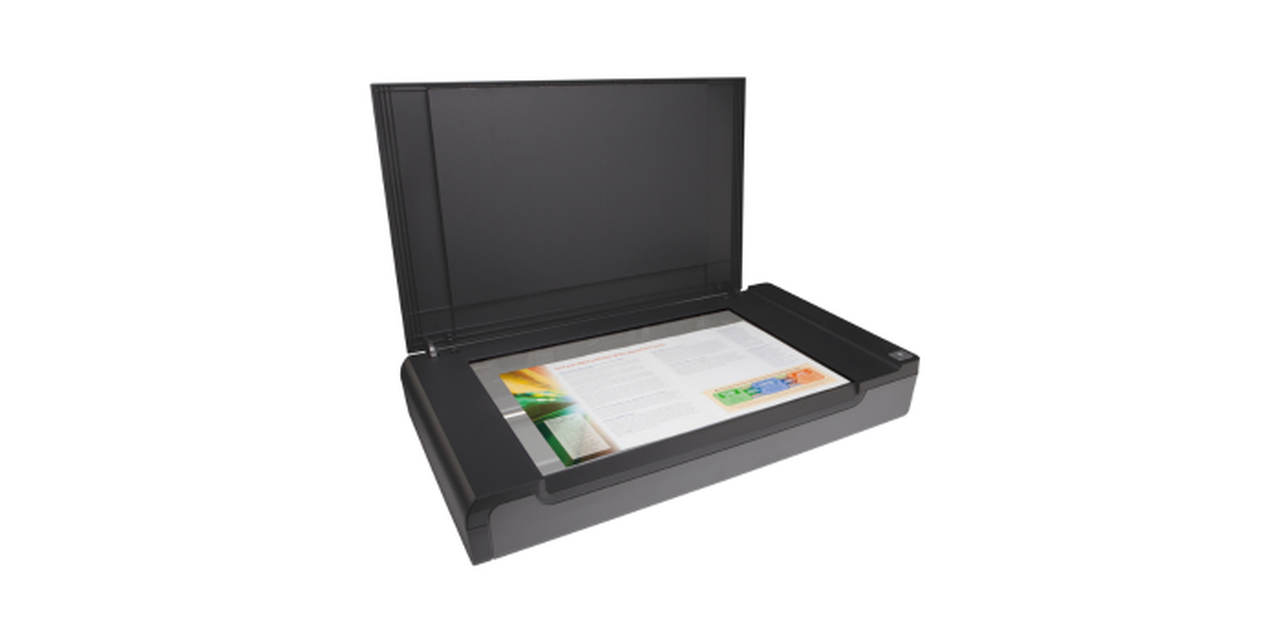
Includes: KODAK A3 Flatbed with black background, 2-meter (6-ft.) USB cable and power supply.
Usage: for scanning exception documents. Accommodates document sizes up to 305 x 457 mm (12 x 18 in.)
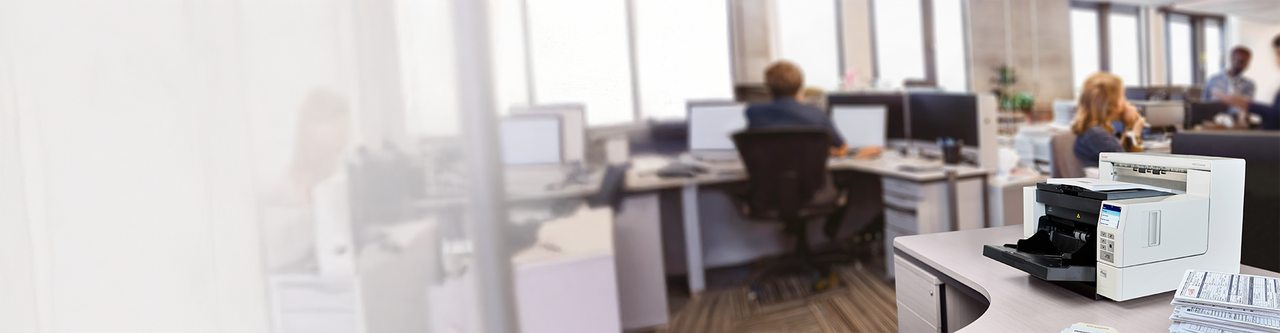
Whether you're maintaining a busy digital mailroom, archiving sensitive documents, or converting case files, our production scanners are built for today and ready for tomorrow.
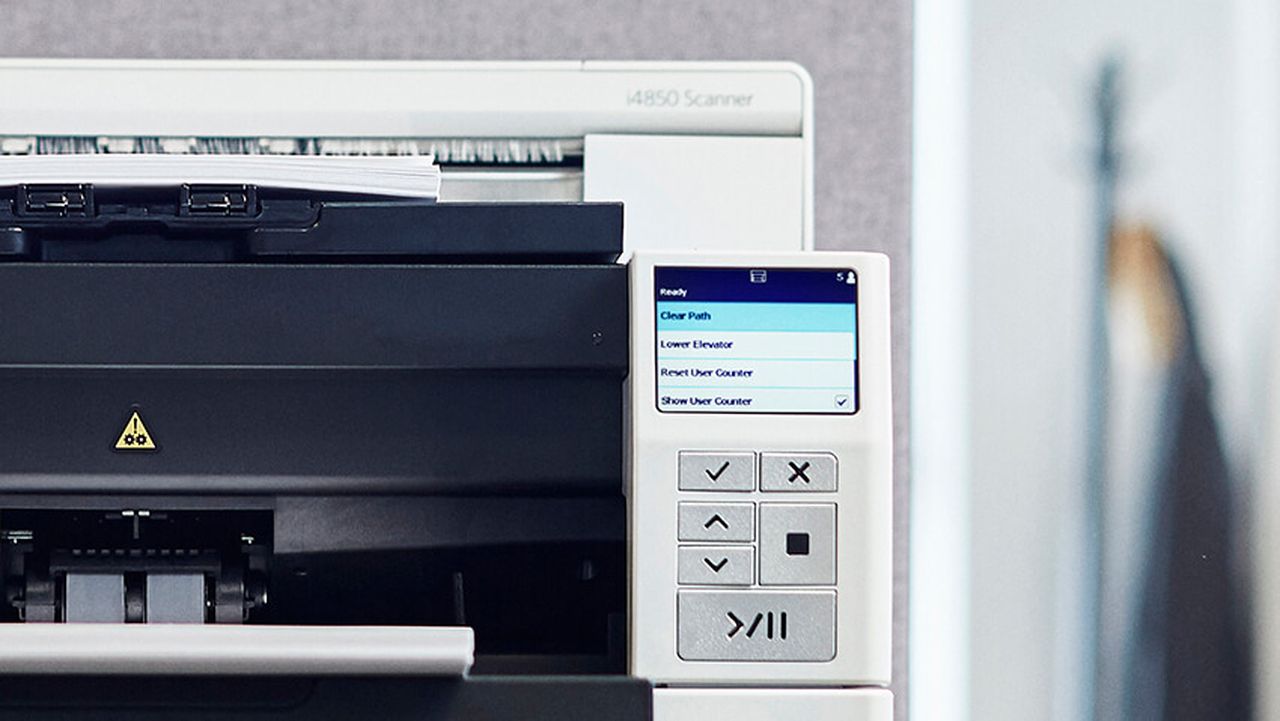
Your busy mailroom, production scanning department or service bureau needs the most productive, accurate, and reliable information capture on the market. The KODAK i4000 Series Scanners are part of our award winning scanner line, and are the right fit for your most demanding jobs. KODAK i4000 Series Scanners feature a 500-sheet input elevator for continuous document feeding, with a straight through paper path for feeding materials such as cardboard, file folders, and extra-long documents.
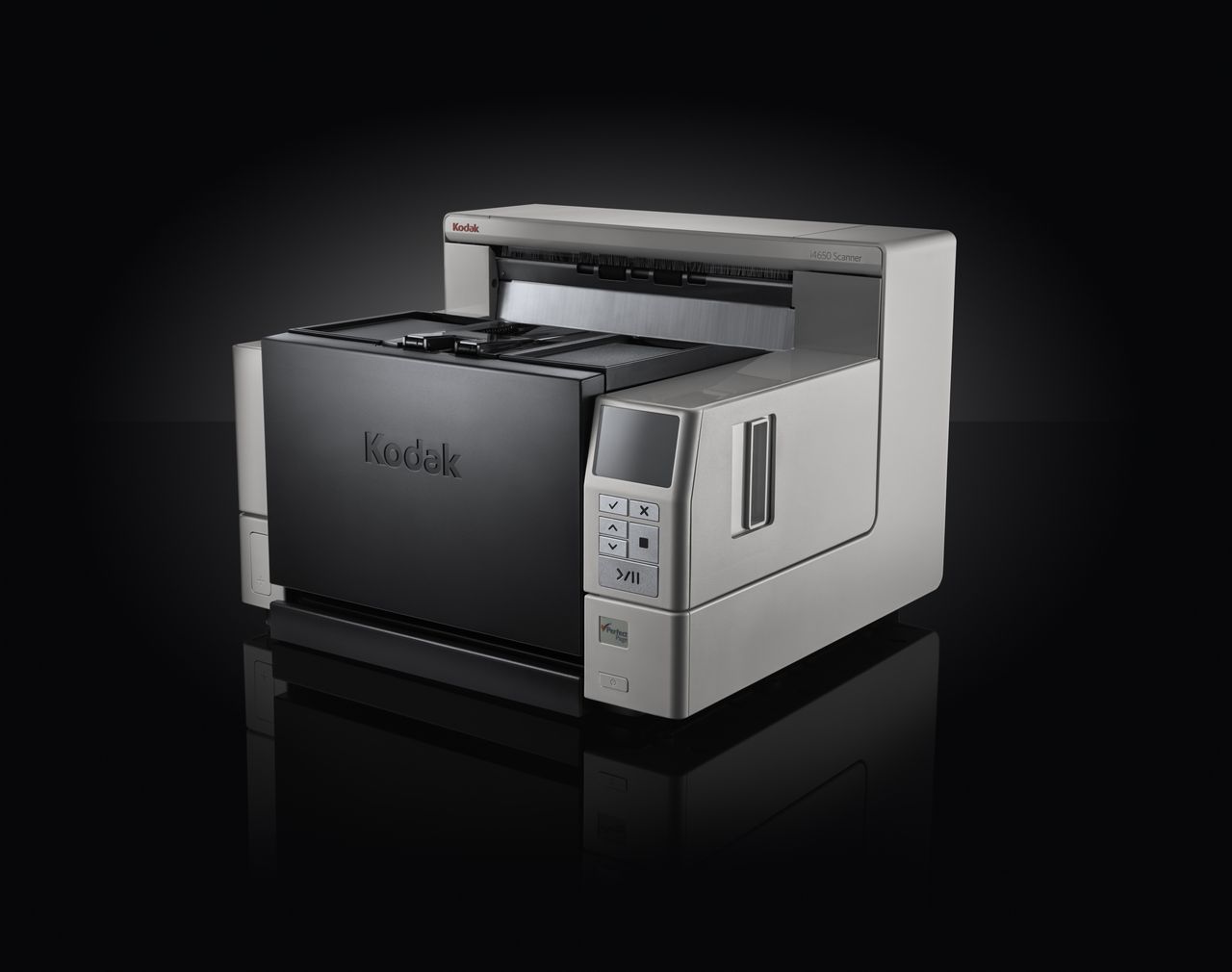
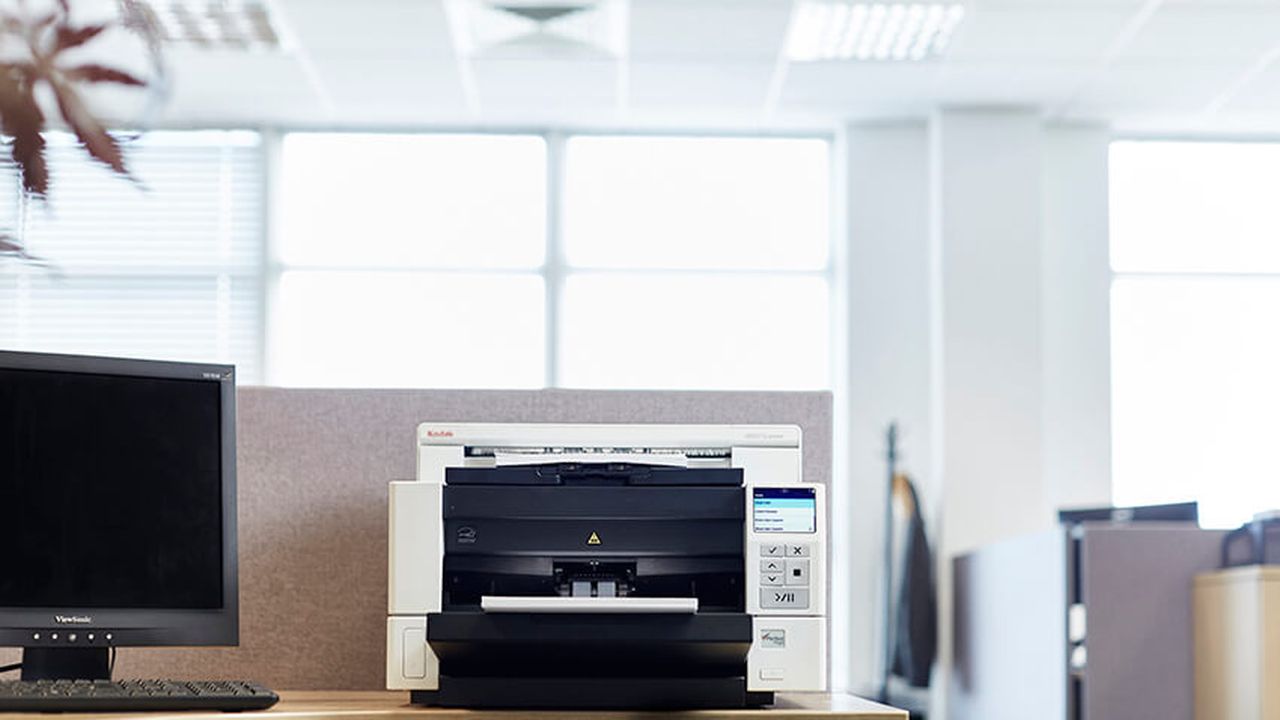
The KODAK i4000 Series Scanners offers a host of features combined with our exceptional image quality to help you deliver high productivity. Get crisp, clear images even with challenging originals, thanks to Perfect Page image processing. And Dual LED technology produces excellent OCR read rates for more precise data extraction with no loss of scanning speed.
Our exclusive paper feeding technology captures virtually any document in almost any condition for unbeatable reliability. The KODAK i4000 Series Scanners have four layers of document protection to safeguard your important documents.
Length detection protects against papers getting overlapped and appearing as one long document
Double document detection ensures that only one document enters the scanner at a time, which is especially helpful when a small document sticks together with a larger document
Intelligent document protection “listens” for a telltale crumpling sound and immediately stops the scanning process
Metal detection prevents forgotten staples and paper clips from scratching the scanner glass
The KODAK i4000 Series Scanners deliver business value by finding the fastest, most efficient ways to enhance your workflows. With multi-zone barcode recognition, the driver reads barcode values to extract metadata, enabling easy integration with line-of-business systems. Combine the scanner with KODAK Info Input Solution and you can manage applications, job setup, and users, as well as capture and index information from a centralized capture location.
Kodak Alaris offers intuitive interfaces, one-touch buttons for scanning, and other features that enhance and simplify the user experience. Smart Touch technology uses one-touch buttons for frequently used scan tasks such as scanning onboarding applications or accounts payable invoices.
You can preprogram jobs to automatically scan hard copies and save them as searchable PDFs, enabling you to easily search for information in the future.
SOFTWARE: KODAK Capture Pro Software, when combined with scanners from Kodak Alaris, provides intelligent capabilities that increase productivity and improve efficiency:
Intelligent Exception Handling ensures immediate validation of forms so any missing information at the point of transaction (like a signature) is identified and fixed, resulting in better customer interactions and greater potential to drive revenue
Intelligent Barcode Reading produces the most accurate data extraction results and takes complexity out of the set-up process
SERVICES: Get the best possible performance from your scanners and software with a full range of world-class service and support options to protect your investment and keep productivity at peak levels.
Have a question? Fill out the information and someone will contact you soon.
| Product Highlights | The best Interactive Multifeed Recovery system of any scanner on the market today. Monitor multifeeds and quickly choose to accept, ignore or rescan images before sending to an application. |
|---|---|
| Throughput SpeedsThroughput speed may vary depending on your choice of driver application software, operating system, PC and selected image processing features. | 150 ppm / 300 ipm |
| Feeder Capacity | Up to 500 sheets of 80 g/m² (20 lb.) paper |
| Connectivity | USB 3.2 Gen 1x1 Certified |
| Maximum Document SizeThe maximum document size supported by the scanner will vary based on the output image resolution and image compression used. | 305 mm x 9100 mm (360 in. x 12 in.) |
| Paper Thickness and Weight | 45-200 g/m² (12-110 lb.) paper |
| Maximum Optical Resolution | 600 dpi |
| Accessories and Consumables | Document Extenders Feeder Consumables Kits Imaging Guide Set KODAK A3 Size Flatbed Accessory KODAK Enhanced Printer Accessory Printer Cleaning Pads Printer Ink Cartridge and Carrier Switchable Background |
| Acoustical Noise | Scanning: <63 dB(A) |
| Approvals and Product Certifications | Argentina (S mark) Australia/New Zealand (RCM) Canada (cTUVus & ICES-003) China (CCC) European Union (CE) European Union (GS Mark) India (BIS) Japan (VCCI) Mexico (NOM) South Korea (KC) Taiwan (BSMI) US (cTUVus & FCC) |
| Barcode Reading | Codabar Code 128 Code 3 of 9 EAN-13 EAN-8 Interleaved 2 of 5 PDF417 QR UPC-A UPC-E |
| Data Security | This scanner processes scanned data exclusively through volatile memory ensuring image data is effectively erased upon shut down.Read more about data security. |
| Dimensions and Weight |
|
| Electrical Requirements | 100-240 V (International); 50-60 Hz |
| Environmental Certification | 2008 EuP ENERGY STAR Qualified EPEAT Silver |
| File Format Outputs | BMPNative scanner and driver file format JPEGNative scanner and driver file format Microsoft ExcelAvailable with bundled applications Microsoft WordAvailable with bundled applications Multipage TIFFAvailable with bundled applications PDFAvailable with bundled applications PNGAvailable with bundled applications RTFAvailable with bundled applications Single-page TIFFNative scanner and driver file format Text searchable PDFAvailable with bundled applications |
| Image Output Resolution Options | Up to 600 dpiSupported DPI: 100, 150, 200, 240, 250, 300, 400, 500, 600 |
| Minimum Document Size | 50.8 mm x 63.5 mm (2 in. x 2.5 in.) |
| Operating System Compatibility | Neokylin-NKLD-V7_U2-ZX64-REL-build54 Open SUSE 13.2 (i586) 32-bit Open SUSE LEAP 15.2 64-bit SUSE Linux Enterprise Desktop 12.2 64-bit SUSE Linux Enterprise Desktop 15 SP5 for 64-bit Ubuntu 18.04 64-bit Ubuntu 20.04 64-bit WINDOWS 10 (32- and 64-bit) WINDOWS 11 (64 bit)Pro Version WINDOWS Server 2012 R2 X64 Editions WINDOWS Server 2016 X64 Editions WINDOWS Server 2019 X64 Editions WINDOWS Server 2022 X64 Editions |
| Operating Temperature and Humidity | Operating Humidity 15% - 80% RH Operating Temperature 15-35° C (59-95° F) |
| Operator Control Panel | 3.5 inch (89 mm) graphical color LCD |
| Optional Software | Capture Pro Software Info Input Solution |
| Paper Path Options | Documents can exit into the front output tray, or at the rear of the scanner if the straight-through paper path option is manually selected |
| Sure Path Features | Controlled stacking Enhanced jam recovery Intelligent Document Protection Interactive multifeed with image display on host Interactive Operator Control Panel (OCP) Length Multifeed Detection Metal (staple) detection Operator overrides Ultrasonic Multifeed Technology |
| Perfect Page Features | Adaptive threshold processing Aggressive cropping Auto white balance Autocrop Automatic color balance Automatic color detection Automatic orientation Barcode reading Color-on-the-fly toggle patch Content-based blank page removal Deskew Electronic color dropout Enhanced color adjustment Enhanced color management Fixed cropping Fixed thresholding Front side printer Halftone removal Image edge fill Image hole fill Image merge iThresholding Lone Pixel Noise Removal Multicolor dropoutNot available when scanning with AQIST for FADGI compliant images Orthogonal rotation Output Compression-CCITT Group IV, JPEG, Uncompressed Output Relative cropping Sharpening Streak filtering |
| Power Consumption | Running: less than 130 watts Sleep Mode: less than 1.5 watts Standby: less than 0.5 watts |
| Prices | $$$$ |
| Recommended Daily Volume | Up to 130,000 pages per day |
| Recommended PC Configuration | INTEL CORE i5 (Sandy Bridge or newer), running @ 2.7 GHz or higher, USB port 3.0 (Super Speed) or 2.0 (High Speed), 4 GB RAM or more |
| Scanning Technology | Dual White LED Illumination CCD; Grayscale output bit depth is 256 levels (8-bit); color output bit depth is 24 bits (8 x 3); color capture bit depth is 48 bits (16 x 3) |
| Standard Software and Drivers | ISIS Drivers KOFAX certified LINUX (TWAIN and SANE) Drivers TWAIN Drivers WIA Drivers |
The PDF below will have warranty information, including warranty, extended warranty, and post-warranty options.
Select your country to see its warranty information.
Kodak Alaris offers an array of Professional Services. The Professional Services range from Technical Assistance offerings (e.g., Installation, Training) to Optimization Services (e.g., Capture Workflow Assessments) and more. To inquire or purchase, contact us.
Keypoint Intelligence, the world’s leading independent tester of document imaging products, has honored Kodak Alaris with the Buyers Lab (BLI) 2023 Scanner Line of the Year Award.
Keypoint Intelligence, the world’s leading independent tester of document imaging products, has honored Kodak Alaris with the Buyers Lab (BLI) 2022 Scanner Line of the Year Award.
Kodak Alaris wins BLI's Scanner Line of the Year Award 5 of the last 6 years.

KMWorld has recognized the Kodak Alaris IN2 Ecosystem on its list of trend-setting products of 2019.

Technology provider has 28 scanners listed in EPEAT registry for environmental excellence, the most of any scanner vendor in the world.
Includes: KODAK A3 Flatbed with black background, 2-meter (6-ft.) USB cable and power supply.
Usage: for scanning exception documents. Accommodates document sizes up to 305 x 457 mm (12 x 18 in.)
By downloading from Kodak Alaris, you agree to the terms & conditions outlined in the license agreement. Actual file size for multilanguage downloads may vary.
The installation process can be complex. Please read the release notes before downloading. By downloading from Kodak Alaris, you agree to the terms & conditions outlined in the license agreement. Actual file size for multilanguage downloads may vary.
Operating systems:
Go to specifications for complete list, review release notes for details.
Version: 5.2
ISIS Driver that has been developed and tested for use with all ISIS enabled host applications.
Please Note: Customers must install the TWAIN driver prior to installing ISIS.
Go to specifications for complete list, review release notes for details.
Note: 32-bit and 64-bit LINUX Driver files do not include Guides. Expand the file (e.g., tar -xf *.gz) and then run the setup script (i.e. sudo ./setup)
Version: 5.1
Deb Linux 32 BitRPM Linux 32 BitRPM Linux 64 BitDeb Linux 64 Bit
The installation process can be complex. Please read full instructions before downloading.
The installation process can be complex. Please read full instructions before downloading.
The installation process can be complex. Please read the release notes before downloading. By downloading from Kodak Alaris, you agree to the terms & conditions outlined in the license agreement. Actual files size for multilanguage downloads may vary.
Version: 250201
This software will let you create searchable PDF's (or other types of images) with the touch of a button.
Please read the release notes before downloading. By downloading from Kodak Alaris, you agree to the terms & conditions outlined in the license agreement.
Version:
Installing the Smart Touch Export Tools installs the tool used to export your Smart Touch setting shortcuts from one computer to another. This tool is only for Windows Operating Systems
Capture and index your critical data and send smarter information to ECM systems and business applications to streamline your workflows and processes.
i4250/i4650/i4850 KOFAX VRS Support
The KODAK i4250, i4650, and i4850 Scanners have been certified by KOFAX with the following VRS versions:
VRS Elite 5.1 <-Component installer update required
VRS Elite 5.1.1, 5.1.2, 5.2 <- No Component installer required
For more information, see the KOFAX Scanner Configurator.
Kodak Alaris has several integration options for our scanners.
We have traditional thick client integration options with our TWAIN and ISIS and WIA drivers as well as an easy to use Scanner SDK.
We also have a state of the art RESTful Web API for integration to our network enabled scanners from any platform without installing host drivers.
Have a question? Fill out the information and someone will contact you soon.
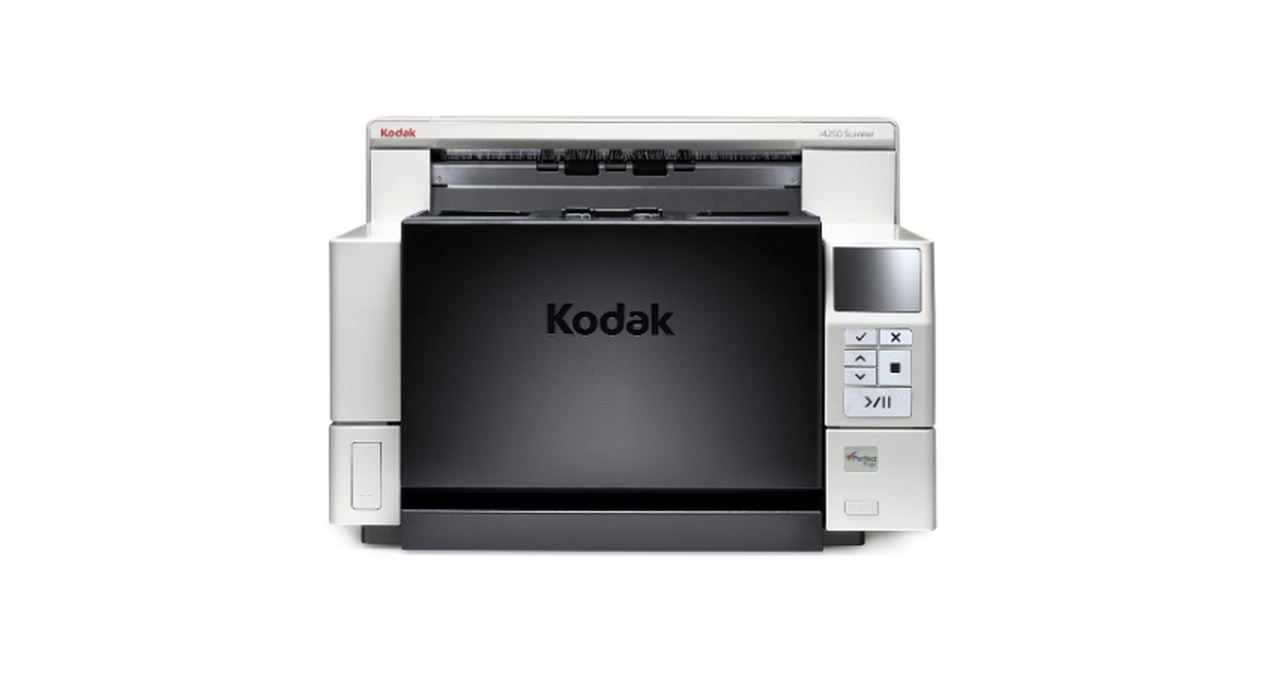
The KODAK i4000 Series Scanners are part of our award winning scanner line, and are the right fit for your most demanding jobs.
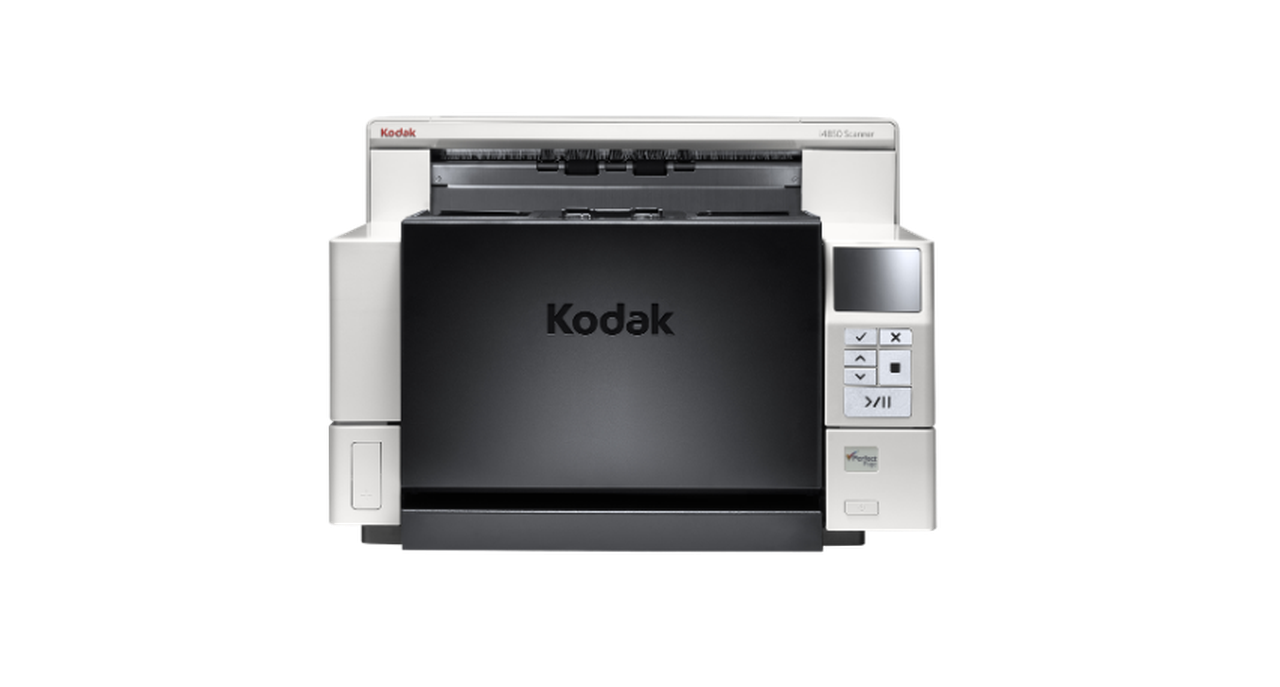
The Kodak i4000 Series offers a host of features combined with our exceptional image quality to help you deliver high productivity.
For detailed instructions on how to install a scanner, please refer to Section 2 of the User's Guide.
Watch our video guide on how to clean the rollers: How do I clean the rollers?.
To determine the consumables that are needed please reference the consumable catalog.
1.With one hand, press the locking tabs (one on each side) while holding the lower housing with the other hand. Pull the upper housing up and away from the rollers.
2.Remove both core assemblies
3.Replace each tire by sliding the tire off the core.
4.Install each new tire by gently pulling it over the core. The tires do not need to be installed in any specific orientation.
IMPORTANT:Do not overstretch the tire; it may tear.
5.Replace each core assembly in the lower feed module housing and align the tabs on the upper housing with the slots on the lower housing.
6.Press the upper and lower housings together until they snap into place.
7.Insert the pin on the left side of the feed module with the rod (1); align the upper tab with the slot (2); align the pin on the right side of the feed module with the rod (3) and turn the green feed module release knob (4) to reengage the feed module. Verify that the feed module is securely in place and moves freely after you install it.
8.Close the scanner cover and the printer access cover.
9.Reinstall the output tray.
A recommended cleaning sequence includes vacuuming the scanner transport, cleaning the residue from the feed module tires, separation roller tires and drive rollers and cleaning the imaging guides.
Use the chart below as a guide to how frequently you should clean your scanner.
Make sure that:
All documents meet specifications for size, weight, and type, etc. as outlined in Appendix A, Specifications.
All staples and paper clips have been removed from the documents.
All rollers and tires are clean and the separation roller and feed module are properly installed. See the procedures in Chapter 5, Maintenance.
To remove a document jam:
Remove any documents from the feeder area.
Open the scanner cover.
Locate the jammed document(s) and remove it.
Close the scanner cover and resume scanning.
For information about available materials, see the Supplies & Consumables Catalogue for Kodak Alaris
Make sure that:
all documents meet specifications for size, weight, and type, etc. as outlined in Appendix A, Specifications.
all staples and paper clips have been removed from the documents.
all rollers and tires are clean and the separation roller and feed module are properly installed. See the procedures in Chapter 5, Maintenance.
To remove a document jam:
Remove any documents from the feeder area.
Open the scanner cover.
Locate the jammed document(s) and remove it.
Close the scanner cover and resume scanning.
Verify that:
The input elevator side guides are adjusted to fit the documents being fed.
The gap release is set correctly.
The documents are being fed perpendicular to the feed module.
All staples and paper clips have been removed from the documents.
The feed module, separation roller, and drive rollers are clean and not damaged.
The scanner transport is firmly closed.
Verify that the Document Management: Maximum Length option on the Device-General tab (TWAIN Datasource) or the Longest Document option on the Scanner tab (ISIS Driver) is set to longer than the longest document being scanned. The default is 43.2 cm (17 inches).
Make sure the input elevator and output tray extenders are pulled out to provide support for long documents or use the optional document extenders
Clean the imaging guides. Refer to User Guide Chapter 5, Maintenance.
Enable the Streak Filter option or increase the aggressiveness in the driver settings.
Your PC may not meet the minimum requirements for the scanner.
Some image processing functions will reduce scanner speed, check your driver settings
Greater than 300 DPI resolution slow the scanner transport speed and the scanner will be slower
Anti-virus and anti-malware software may be scanning all images being saved
Scanning to network drives can decrease system performance, try scanning to a local drive
The host scanning application is not pulling the images from the scanner fast enough.
Check :
The computer meets minimum requirements for scanning.
There is enough free space on the hard disk drive.
Try a USB 3.0 port instead of a USB 2.0
Verify that image compression is enabled in the driver settings.
For information on how to contact Kodak Alaris support, please visit Kodak Alaris Services and Support.
Refer to the User's Guide for Smart Touch for information about using this software.
For information about using Scan Validation Tool, please click here.
Make sure that:
The power cord is plugged in and the power is on.
The power button has been pushed on and the green LED is lit.
The scanner cover is completely closed.
Documents are making contact with the feed module and are covering the paper present sensor.
The last document in the stack does not have black in the area covering the paper present sensor in the input elevator.
Documents meet specifications for size, weight, and type, etc.
For thicker documents, toggle the gap release toggle switch during feeding.
You check the feed module and separation roller for signs of wear, and replace these parts if necessary.
You can also power the scanner down and power it up again.
Warranty Information is provided in Appendix B of the User's Guide.
Steady green — the scanner is scanning. Fast flashing green: waiting for operator action.
Slow flashing green — the scanner is in power saver mode. Steady red: indicates a scanner error, such as the scanner cover is open.
Steady red then flashing green — scanner is powering up.
After you power up the scanner, the red and green indicator lights flash. After approximately 12 seconds, both lights go out. When the green indicator light comes back on and the function window displays “1”, the scanner is ready to begin scanning. However, the host computer may require several seconds to detect the scanner.
Falling bar — when the scanner is waiting for an operator action, a blue bar will step down in succession from top to bottom in the function window.
Register your scanner to ensure you get the most out of your investment.
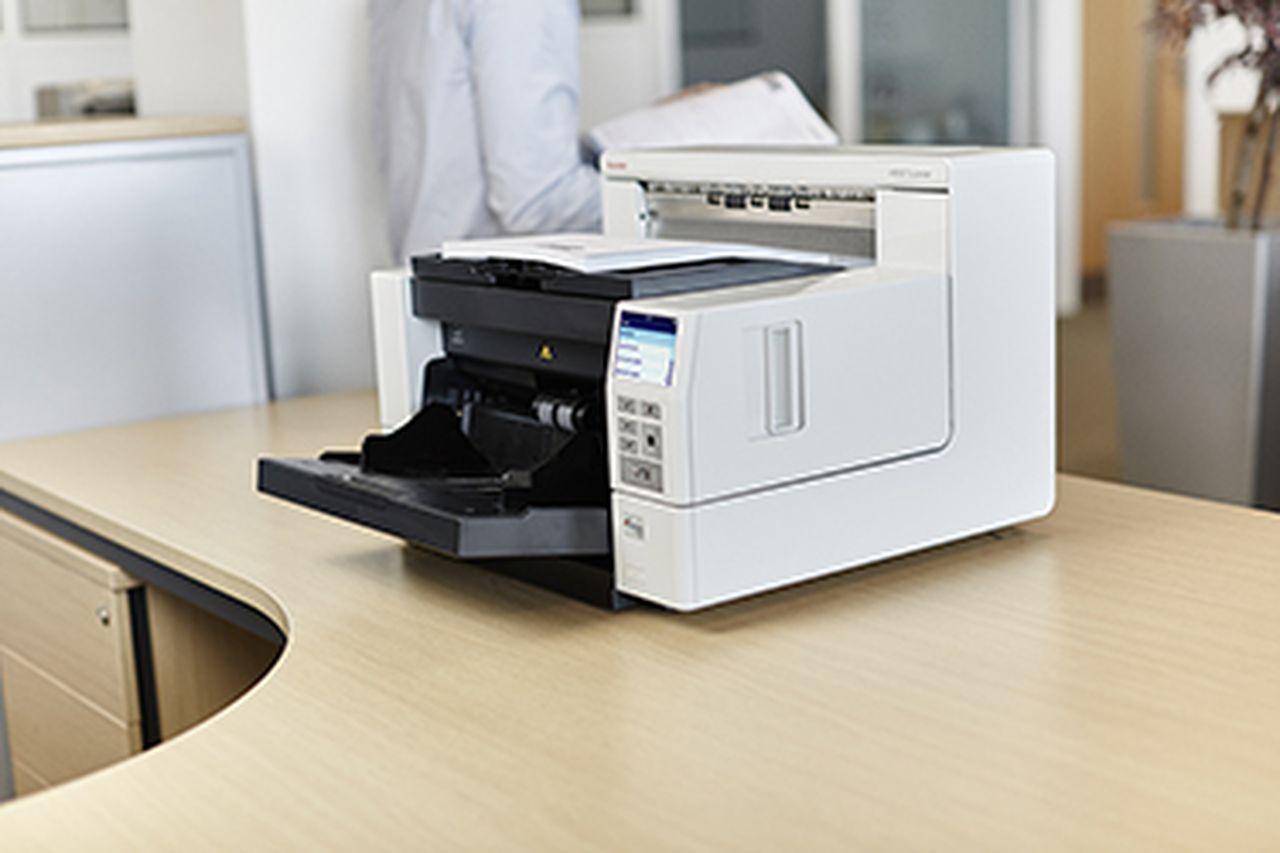
Contact your Reseller to purchase supplies and consumables. If you don't know who your reseller is, please complete the Ask a Question form.