Access Partner Portal
Register Your Scanner
Register your scanner to ensure you get the most out of your investment.

Register your scanner to ensure you get the most out of your investment.
License Agreement
By downloading from Kodak Alaris, you agree to the terms & conditions outlined in the license agreement. Actual file size for multilanguage downloads may vary.
Windows
The installation process can be complex. Please read the release notes before downloading. By downloading from Kodak Alaris, you agree to the terms & conditions outlined in the license agreement.
Operating systems tested on:
Version: 5.7
Firmware
The installation process can be complex. Please read the release notes before downloading. By downloading from Kodak Alaris, you agree to the terms & conditions outlined in the license agreement. Actual file size for multilanguage downloads may vary.
Version: 7.02.00
Archival Quality Image Scanning Tool
The installation process can be complex. Please read the release notes before downloading. By downloading from Kodak Alaris, you agree to the terms & conditions outlined in the license agreement.
Register your scanner to ensure you get the most out of your investment.
The default profile settings provided in AQIST Software are designed to produce 3-star compliant images per the Federal Agencies Digital Guidelines Initiative (FADGI). Changing profile settings (or using custom profiles) may not produce 3-star compliant images.
Call 1-800-356-3253, option 2, to contact Kodak Alaris for Professional Services, including Operator Training, relocation, and installation for your scanner.
Go to our Request Service form to submit a request to obtain service for your scanner.
Or Call 1-800-356-3253, option 1
Use the Microsoft Windows “Add or remove programs” Control Panel function, and follow the prompts to uninstall the AQIST Software.
Verify the selection for the “Also Remove User Data” check box in the following screen. When the check box is selected, the uninstall program removes the User Data listed below. When the check box is not selected, the uninstall program does not remove the User Data listed below.
For information about using the Scan Validation Tool, click here.
Follow these steps to configure the AQIST Software for the 3-star compliance test.
Follow these steps to configure the scanner for the 3-star compliance test.
Definitions of icons and symbols on the OCP are provided in Section 3 of the User’s Guide (see Scanning – Ready Screen).
For information about the Indicator Lights on the scanner, see Section 2 of the User’s Guide (see Installation – Power Modes).
The minimum Host Computer configuration is
If scanning to the same Host Computer, using a second 500 GB SSD is recommended.
The scanning speed of AQIST Software with scanners from Kodak Alaris enabled for FADGI scanning is
Warranty information is provided in Appendix B of the User's Guide.
AQIST Software and the Scanner Windows Driver are compatible with MICROSOFT Windows 10 OS. Customers may be able to use MICROSOFT Windows 11 OS, but it is at their own risk and understanding that bugs may exist.
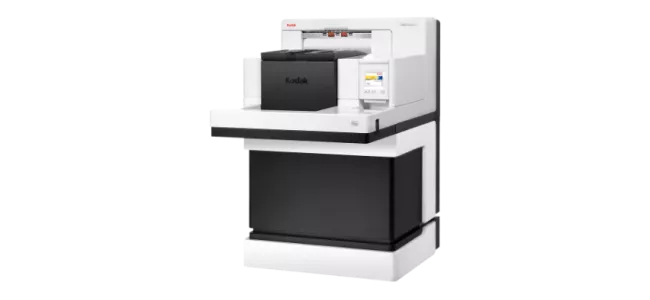
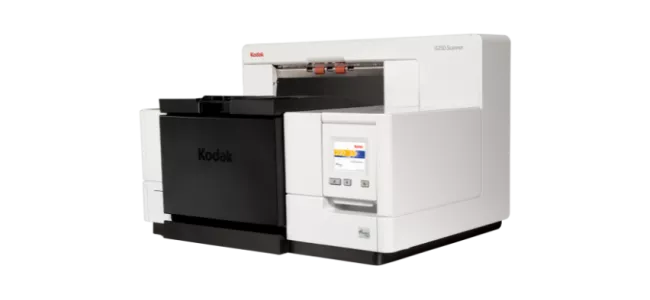
Kodak Alaris field engineers install KODAK i5250 and i5850 Scanners that are enabled for FADGI scanning.
Currently, FADGI-enabled scanners from Kodak Alaris are only available in the United States.
Contact Image Science Associates with questions or concerns about DICE Targets and GoldenThread™ Software. Go to the Image Science Associates website for customer service, products, resources, and services.
No, flatbed scanners connected to a FADGI-enabled scanner do not produce FADGI 3-Star compliant documents. Flatbed scanners are not certified for FADGI scanning.
No, in accordance with the FADGI guideline for Documents (Unbound): General Collections 3-Star rating, the i5250 and i5850 FADGI Enabled scanners will capture and generate 300 DPI images. A change was made to mitigate marketplace misconception that the i5250 and i5850 FADGI Enabled scanners were compliant with the FADGI 4-Star resolution guidelines.
Follow the procedures and recommendations in Section 7 of the User’s Guide to keep your scanner in good operating condition. The maintenance section provides
• Information about cleaning supplies and tools
• Cleaning procedures
• Information about consumables, including replacement procedures
Use the chart below as a guide to how frequently you should clean your scanner.
| Procedure | Start of day | Middle of shift | Start of new shift |
|---|---|---|---|
| Vacuum output tray and input areas (input elevator and transport) | X | ||
| Clean all rollers | X | X | |
| Vacuum transport area | X | X | X |
| Clean imaging guides | X | X | X |
| Run transport cleaning sheet | X | X |
For information about available materials, see the Supplies & Consumables Catalogue for Kodak Alaris
Note: Some of the following actions may require your computer administrator to do the troubleshooting and repair actions.
| Error Message | Possible Cause | Action |
|---|---|---|
| Unable to start the Batch | The software is unable to connect to the scanner to start scanning | Verify that the scanner is connected and available for use. |
| The configuration package for the connected scanner may not be installed to AQIST | Install the configuration package for the correct scanner (by serial number). | |
| One of the scan settings is not supported, e.g., resolution is higher than 300 or 400 dpi | Check the profile settings used for the scanning job. | |
| The destination file does not exist (i.e., could not be created) | Select a destination folder that is available. Check permissions and anti-virus software settings for the destination location. | |
| HIPPO.dll and HIPGPU are missing, or the Host Computer does not use GPU and HIPPO.dll is missing | One or more of the AQIST image processing files are missing or corrupt. Check the C:\Program Files\AQIST\files folder for missing or corrupt files. | |
| The ICC profile file (i.e., ProPhoto.icm) is missing or corrupt | Check the C:\Program Files\AQIST\files folder for missing or corrupt files. | |
| The scanner model package file (i.e., kds_i5000.ekp) is missing | Check the following location for available scanner serial number packages. Check the C:\ProgramData\kds_kodak\aqist_files\ packages folder for a missing or corrupt scanner package file. | |
| Unable to start the Batch or Unable to create the destination folder | A computer or system update changed your access to a drive location | Update your destination folder. Open the Batch Settings window, click Browse and select a new folder location, then click OK to update your scan settings. To use an existing destination, check with your computer administrator to troubleshoot destination folder accessibility. |
| No paper found in the scanner | A scan was started, but no document was inserted before the timeout | Insert a document(s) and scan again. |
| A paper misfeed occurred | A multifeed was detected during scanning | Clear the paper path and scan again. If multifeed issues persist, clean the UDDS sensors, then do the UDDS calibration. Refer to Section 3 of the User’s Guide. |
| A paper jam occurred | A jam was detected during scanning | Clear the paper path and scan again. Refer to Section 7 of the User’s Guide. |
| The scanner is in use by another application or someone else | The scanner is busy, i.e., immediately after connecting the scanner when the WIA driver is discovering the scanner | Check that the scanner is not currently in use, then try again. Use Task Manager to check that SVT, Smart Touch, or another scanning application (or background process) is not running. Check SVT (32 bit), KodakCollector.exe, Smart Touch (32 bit), KSSE (32 bit), or other scanner applications or processes. |
Possible solutions to common issues are provided in Section 8 of the User’s Guide, or in our i5000 FADGI Scanner Troubleshooting Guide.
Note: Some of the following actions may require your computer administrator to do the troubleshooting and repair actions.
| Error Message | Possible Cause | Action |
|---|---|---|
| Unable to start the Batch | The software is unable to connect to the scanner to start scanning | Verify that the scanner is connected and available for use. |
| The configuration package for the connected scanner may not be installed to AQIST | Install the configuration package for the correct scanner (by serial number). | |
| One of the scan settings is not supported, e.g., resolution is higher than 300 or 400 dpi | Check the profile settings used for the scanning job. | |
| The destination file does not exist (i.e., could not be created) | Select a destination folder that is available. Check permissions and anti-virus software settings for the destination location. | |
| HIPPO.dll and HIPGPU are missing, or the Host Computer does not use GPU and HIPPO.dll is missing | One or more of the AQIST image processing files are missing or corrupt. Check the C:\Program Files\AQIST\files folder for missing or corrupt files. | |
| The ICC profile file (i.e., ProPhoto.icm) is missing or corrupt | Check the C:\Program Files\AQIST\files folder for missing or corrupt files. | |
| The scanner model package file (i.e., kds_i5000.ekp) is missing | Check the following location for available scanner serial number packages. Check the C:\ProgramData\kds_kodak\aqist_files\ packages folder for a missing or corrupt scanner package file. | |
| Unable to start the Batch or Unable to create the destination folder | A computer or system update changed your access to a drive location | Update your destination folder. Open the Batch Settings window, click Browse and select a new folder location, then click OK to update your scan settings. To use an existing destination, check with your computer administrator to troubleshoot destination folder accessibility. |
| No paper found in the scanner | A scan was started, but no document was inserted before the timeout | Insert a document(s) and scan again. |
| A paper misfeed occurred | A multifeed was detected during scanning | Clear the paper path and scan again. If multifeed issues persist, clean the UDDS sensors, then do the UDDS calibration. Refer to Section 3 of the User’s Guide. |
| A paper jam occurred | A jam was detected during scanning | Clear the paper path and scan again. Refer to Section 7 of the User’s Guide. |
| The scanner is in use by another application or someone else | The scanner is busy, i.e., immediately after connecting the scanner when the WIA driver is discovering the scanner | Check that the scanner is not currently in use, then try again. Use Task Manager to check that SVT, Smart Touch, or another scanning application (or background process) is not running. Check SVT (32 bit), KodakCollector.exe, Smart Touch (32 bit), KSSE (32 bit), or other scanner applications or processes. |
Note: Some of the following actions may require your computer administrator to do the troubleshooting and repair actions.
| Error Message | Check Box Selection: Show / Hide When Starting | Condition/Action |
|---|---|---|
| Unable to initialize TWAIN DSM | Hide | The TWAIN DSM driver is installed on the computer, but could not be opened. No scanner drivers listed. Uninstall the driver, then install it again. To obtain the driver, go to www.alarisworld.com/go/i5000FADGIsupport. |
| File name prefix was not valid, so it was updated | Normal or hidden | The file name prefix had invalid characters. This can happen when a registry value is bad. The invalid characters are removed and valid characters are inserted into the setting. Uninstall AQIST Software, then install it again. To obtain the AQIST Software, go to www.alarisworld.com/go/i5000FADGIsupport. |
| Starting value was not valid, so it was updated | Normal or hidden | The counter was too large. This can happen if the counter goes higher than 9 digits. The value is truncated at 9 digits. Correct the scan job. |
| One or more settings were also not valid | Hide | One or more settings is not valid. The error dialog displays steps to help determine the setting(s) that needs to be fixed. |
| One or more settings were not valid | Hide | A setting is not valid. The error dialog displays steps to help the setting that needs to be fixed. |
Provide the following items to assist with troubleshooting your issue with FADGI compliance.
Verify that the USB cable is securely seated in a USB port on the computer and scanner. (You can also try using a different USB cable.)
Verify that your scanner model (e.g., KODAK i5000 Scanner) displays in your computer’s Device Manager > Imaging devices.
Follow these steps.
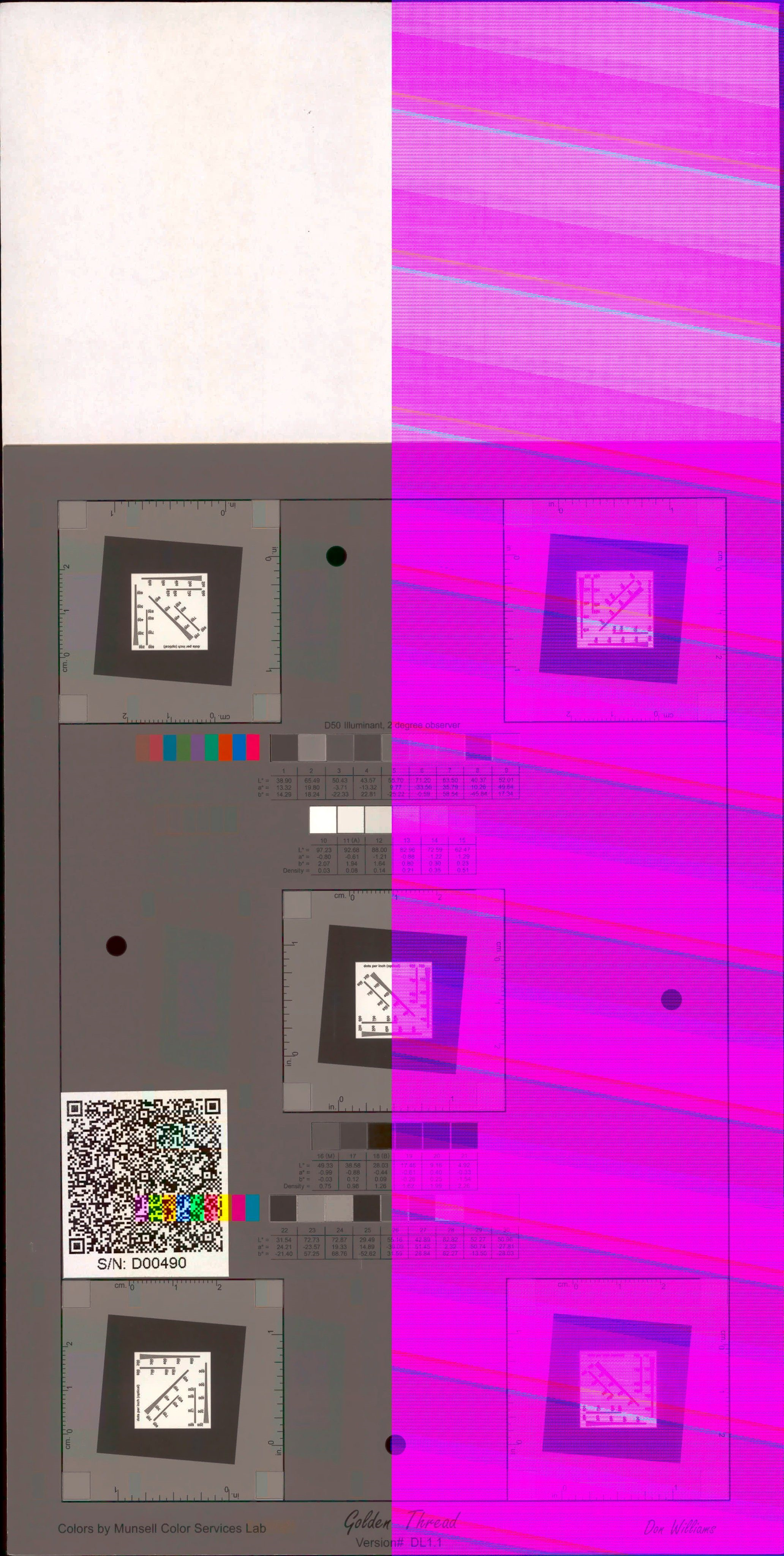
FADGI mode was not enable on the scanner while scanning with AQIST.
Verify that your Host Computer meets the minimum configuration for scanning with AQIST Software. You may want to consider installing a second 500 Gb SSD hard drive if you save images to the same computer.
Note: If the AQIST Software does not respond, open the Batch Settings and check for error messages. Some of the following actions may require your computer administrator to do the troubleshooting and repair actions.
| Status Error Message | Condition |
|---|---|
| *** no scanner drivers found *** | No supported scanner drivers are installed. Install the minimum driver required; CD Version 5.4. |
| *** no scanner found *** | The selected scanner driver did not find a scanner connected to the Host Computer. A Retry button also displays. When the user clicks Retry, the application will look for a scanner again. Verify that the scanner is in the Ready mode. Verify that the USB cable is securely connected between the Host Computer and scanner. |
| *** no configuration package found *** | There is no configuration package installed for the connected scanner. Contact Kodak Alaris service to recover the configuration package. A scanner package can only be recovered if it was manufactured by Kodak Alaris. No after-market upgrade is available. |
| *** no settings found *** | Open the AQIST Batch settings, and select a profile from the Scan Settings menu. |
Protecting Customer Information — Scanners from Kodak Alaris process scanned data exclusively through volatile memory ensuring image data is effectively erased upon shut down.
This scanner contains non-volatile storage (NVRAM), and volatile memory (SDRAM).
Volatile memory is used to store customer image data. It is erased when the device is turned off.
Non-volatile memory is used to store program data, scanner settings, and scanner calibration data. No customer image data is stored in non-volatile memory.
The only scanner settings stored permanently are the Energy Star settings. No other customer data is stored in the non-volatile memory.
NOTE: The image data is passed to a PC which has its own ability to store images and information. The customer will also need to consider what precautions must be taken to secure the data on the PC.
Contact your Reseller to purchase supplies and consumables. If you don't know who your reseller is, please complete the Ask a Question form.
Want to recycle? Kodak Alaris offers recycling services.
Have a question? Fill out the information and someone will contact you soon.